Always on syndrome
*For all Lucid plan types

Optimize how your team uses Microsoft 365 with the help of Hargraves Institute. Is your team having trouble with constant interruptions and the 'always on' syndrome? Time to focus.
What is the always on syndrome template?
Remote workers often deal with constant interruptions and distractions from email and messaging platforms, which can lead to employees working odd hours to make up for the interruptions. Consequently, some workers feel that they never get the chance to disconnect from their jobs and feel burned out from always responding to every notification, no matter what time it is.
This template is from the Hargraves Institute, and it’s designed to help remote teams find the strategies and practices that will help them focus while working and unplug when they’re done. This template also has some tips custom to Microsoft 365, though you can still find the template helpful if you’re not using those tools.
Benefits of using the always on syndrome template
The always on syndrome template is customizable and designed for collaboration. You’ll be able to work with your team to find solutions specific to your circumstances that enable your team to focus. Additionally, Lucidspark’s interactive features like emojis, comments, and chat help with that collaboration.
The template also makes the brainstorming process visual, which keeps everyone aligned. Your team can see on the template what steps you’ve decided to take so that you’re all on the same page.
How to use the always on syndrome template in Lucidspark
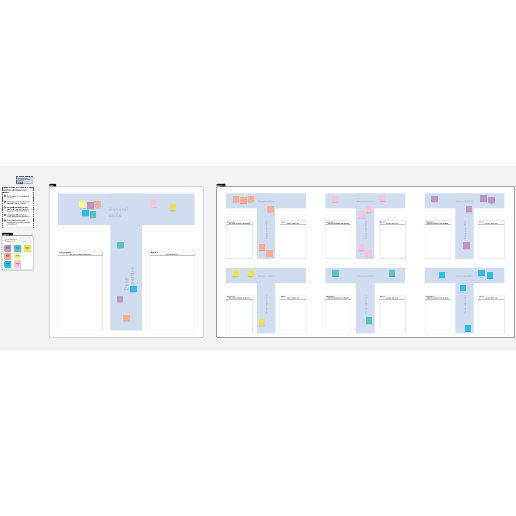
Work through the template from left to right. Begin by picking some Strategy cards that will help your team reduce digital interruptions—you can do this with your whole team, or you can use Breakout Boards for small group work. Each group will discuss what Strategy cards they’d like to try and move them to the Team Board. Then, they’ll do the same with the Everyday Practice cards.
Next, your team will decide what they’re ready to implement right away, and you’ll copy these cards to the Actions and Responsibilities box. Use Lucidspark Cards to add specific details around who will take on each task. Use the timeline box to make a plan for when you’ll tackle these actions and responsibilities—you can make this timeline easily by inserting a Lucidspark Timeline.
When you’re ready, convert your Lucidspark Cards into the project planning tool of your choice. Try using our Jira, Smartsheet, or Azure DevOps integrations to easily track status. With your action items all set, your team will be ready to take action and improve their focus at work.